
What Is a robots.txt File?
A robots.txt file is a plain text file placed at the root of your website that tells search engine crawlers — like Googlebot — which pages or sections of your site they are allowed to visit and which ones they should skip. It uses a simple set of instructions that search engines read before they start crawling your website.
You can find your own robots.txt file by going to yourwebsite.com/robots.txt in your browser. Every properly configured website should have one.
The key thing to understand is that robots.txt is a request, not a command. Reputable search engines like Google respect it, but malicious bots may ignore it completely. It is not a security tool — it is a crawl guidance tool.
Critical warning: One of the most common and damaging SEO mistakes is accidentally blocking Google from crawling your entire website using robots.txt. This can happen when a developer sets "Disallow: /" during development and forgets to remove it before launch. Always check your robots.txt file after any major site changes.
How robots.txt Syntax Works?
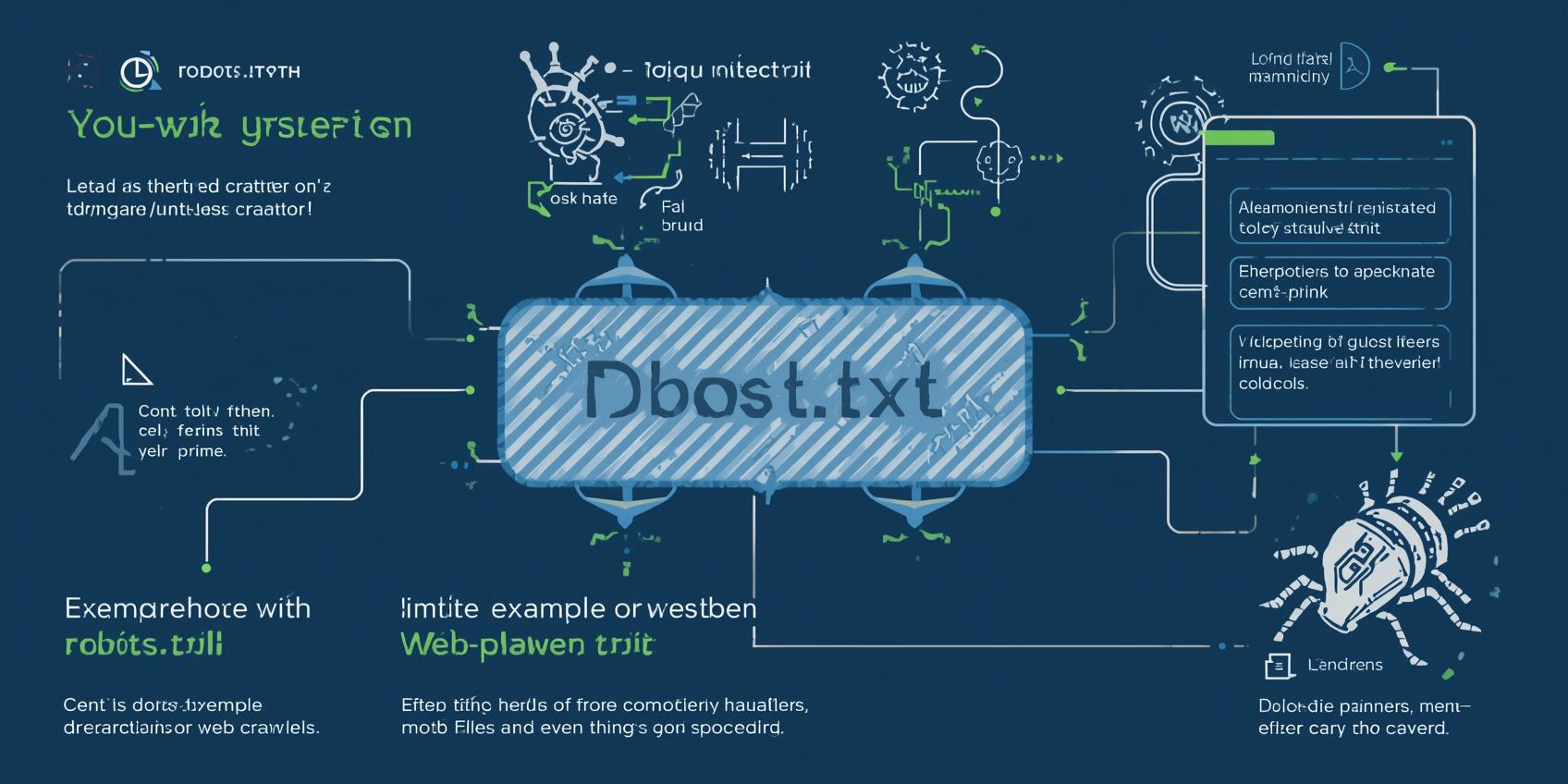 robots.txt File Structure
The robots.txt file uses a simple two-part syntax. Here are the key directives you need to know:
- User-agent: Specifies which bot the rule applies to. Use
*for all bots, orGooglebotfor Google specifically. - Disallow: Tells the bot which pages or folders it cannot visit.
- Allow: Overrides a Disallow rule to permit access to specific pages within a blocked folder.
- Sitemap: Points bots to your sitemap file location.
# Allow all search engines to crawl everything
User-agent: *
Disallow:

# Point to your sitemap
Sitemap: https://www.yourwebsite.com/sitemap.xml
The Disallow: line with nothing after it means "block nothing" — allow everything. This is the correct setting for most websites that want Google to crawl all pages.
Common robots.txt Examples You Can Use
Block a Specific Folder
If you have an admin area, staging pages, or private content you do not want Google to index, you can block entire folders:
User-agent: *
Disallow: /wp-admin/
Disallow: /private/
Disallow: /staging/
Sitemap: https://www.yourwebsite.com/sitemap.xml
Block a Specific Page
User-agent: *
Disallow: /thank-you-page/
Disallow: /login/
Sitemap: https://www.yourwebsite.com/sitemap.xml
Block Everything (Use Only for Development — Never Live Sites)
# DEVELOPMENT ONLY — Remove before going live!
User-agent: *
Disallow: /
Never use "Disallow: /" on a live website. This single line blocks Google from crawling every single page on your site — which means zero pages will appear in search results. Many websites have accidentally tanked their rankings this way.
Good vs Bad robots.txt Examples
 Good vs Bad robots.txt Configuration
User-agent: *
Disallow:

Sitemap: https://www.
yoursite.com/sitemap.xml
User-agent: *
Disallow: /
How to Check Your robots.txt in Google Search Console
Google Search Console has a built-in robots.txt tester that lets you check if your file is correctly configured and test whether specific URLs are blocked or allowed.
- Go to Google Search Console and open your property.
- In the old Search Console interface, go to Crawl → robots.txt Tester.
- Paste the URL you want to test and click "Test" to see if it is allowed or blocked.
- If a page is blocked that should not be, update your robots.txt file accordingly.
You can also simply visit yourwebsite.com/robots.txt in your browser and read through the file manually to verify it looks correct.
 Testing Your robots.txt File
How to Edit robots.txt in WordPress
In WordPress, you have two easy ways to edit your robots.txt file without touching any code:
- Rank Math SEO: Go to Rank Math → General Settings → Edit robots.txt. You can edit the file directly in the plugin interface.
- Yoast SEO: Go to SEO → Tools → File Editor. Yoast shows your robots.txt file and lets you edit it directly.
- Via FTP: Connect to your server using an FTP client like FileZilla, find the robots.txt file in your root directory, and edit it directly.
Frequently Asked Questions
Final Thoughts
The robots.txt file is simple but powerful. For most small websites and blogs, all you need is a basic file that allows all crawlers and points to your sitemap. The key thing is to check that you are not accidentally blocking important pages — especially after site migrations, platform changes, or when coming out of a development/staging phase.
Take 2 minutes right now to visit yourwebsite.com/robots.txt and verify your file looks correct. It is one of the quickest technical SEO checks you can do, and catching a blocking error early can save you months of lost rankings.